
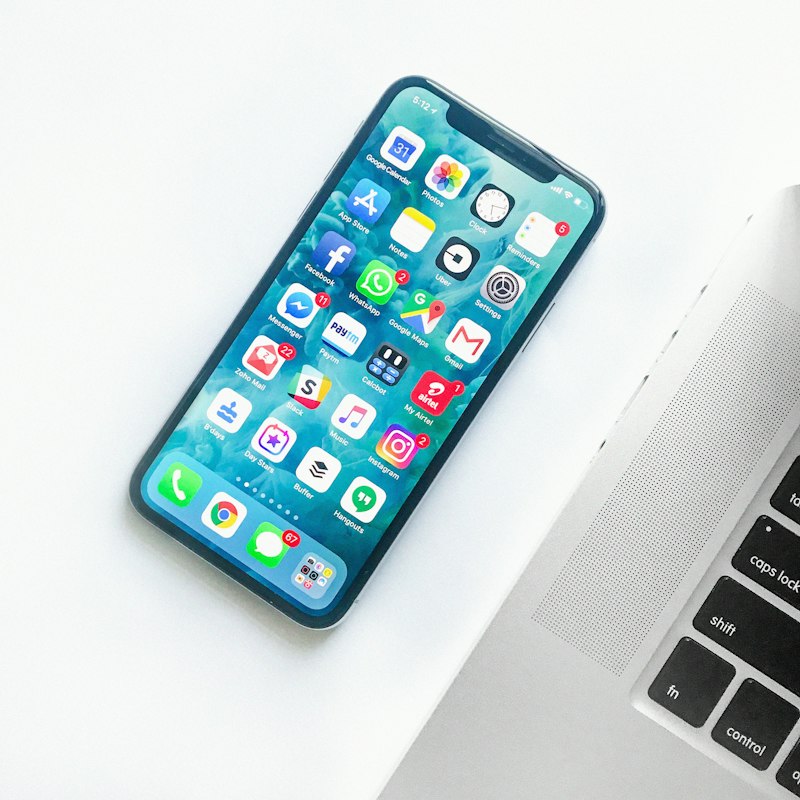
iPhone wallpapers look best when you start with the correct aspect ratio and resolution. Modern iPhones use tall displays; downloading a portrait-oriented image at high resolution prevents cropping surprises in the preview step.
Open the image in Photos, tap Share, then Use as Wallpaper. Choose Lock Screen, Home Screen, or both. Disable Perspective Zoom if you want a fixed crop—zoom can shift focal points on detailed photography.
For iOS versions with depth effects, pick portraits with clear subject separation. Live Photos can animate the lock screen but increase battery use slightly.
Download vertical 4K or retina-ready files from Walliux device guides and collections optimized for mobile. After applying, check icon readability on both light and dark home screen modes.
With the right asset and a minute of adjustment, your iPhone lock screen becomes a daily dose of inspiration.
Share this article
